

Padawan Content Portal
Deliver Large Files, Faster
Managing large assets like images, videos, or documents can bloat your site's bundle size, leading to slower deployment times as well as a poor user or developer experience. The Padawan Content Portal alleviates this by providing a robust and secure location to host your large files. The user interface makes it simple to upload, organize, and manage your assets. Once uploaded, each file is given a URL that you can conveniently reference in your project's code.
Example embedded video
Code:
<video
  controls
  src="https://websites.dso.mil/cdn/bullhorn/videos/2020-P1-Intro.mp4" />
Result:
By offloading these large files to the Padawan Content Portal, you can reduce your application's deployment and initial load time while also ensuring that your users get the content they need, right when they need it.
Available across all impact levels (IL2-PUBLIC, IL2-SSO, IL4, IL5), the Padawan Content Portal is built for performance and security. It's the ideal solution for developers looking to optimize their applications and provide a seamless experience for their users.
Links to the Padawan Content Portal
Padawan Content Portal is available at multiple Impact Levels to suit your application's needs.
To upload, organize, and manage your assets, visit the Padawan content portal at:
IL2 Public
IL2 Single Sign-On (SSO)
IL4
IL5
Capabilities
Access controls
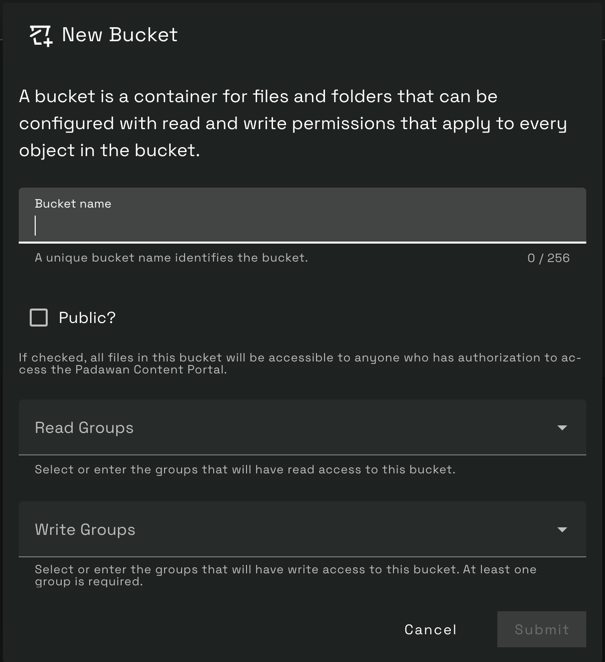
Define access controls on all content in a bucket. Buckets can be set to have all content be accessible to anyone with access to the Content Portal via the "Public" toggle, or you can narrow it to just be available to specific groups for read access. Write groups define what user groups can write (create, update, or delete) items within the bucket.
IL2 Public
IL2 Public is a special case. Since no login is required to access Padawan sites hosted on IL2 Public, files hosted in the IL2 Public Content Portal will also be set to public. While visiting the Padawan Content Portal you can click on the info icon in the top classification banner to learn more about the specific instance of Padawan Content Portal.
Folder and File Management
Easily manage your folders and files by creating, moving, renaming, or deleting them. You can also modify the access controls on all the content in a bucket by editing a bucket's permissions.
Deleting
Only empty buckets and folders can be deleted.
Virus Scanning
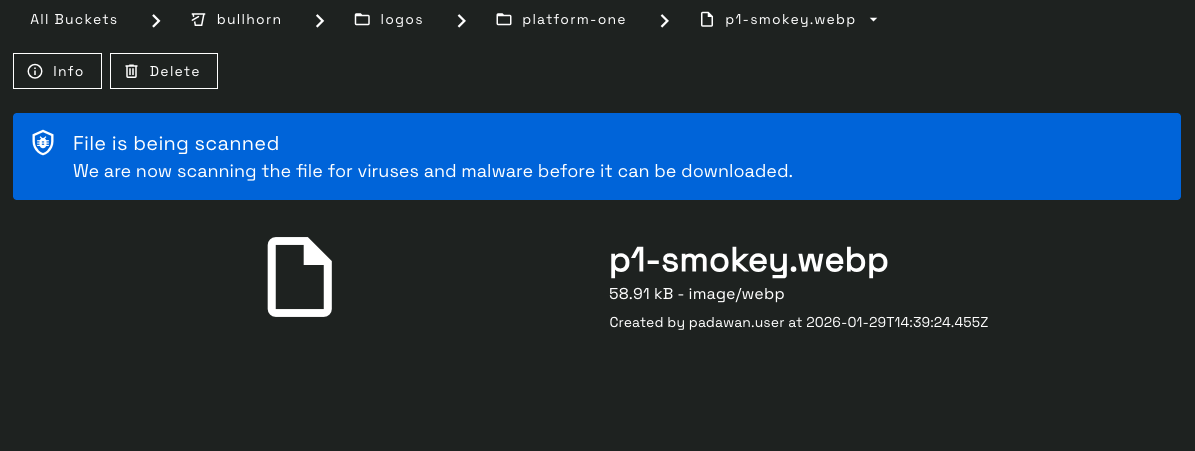
All files are scanned using ClamAV and must be verified clean before they can be accessed. The scanning process usually only takes a minute or two depending on the file size. The Content Portal will automatically fetch the latest status so you don't have to refresh the page and inform you if the file fails scanning.
Accessing Files
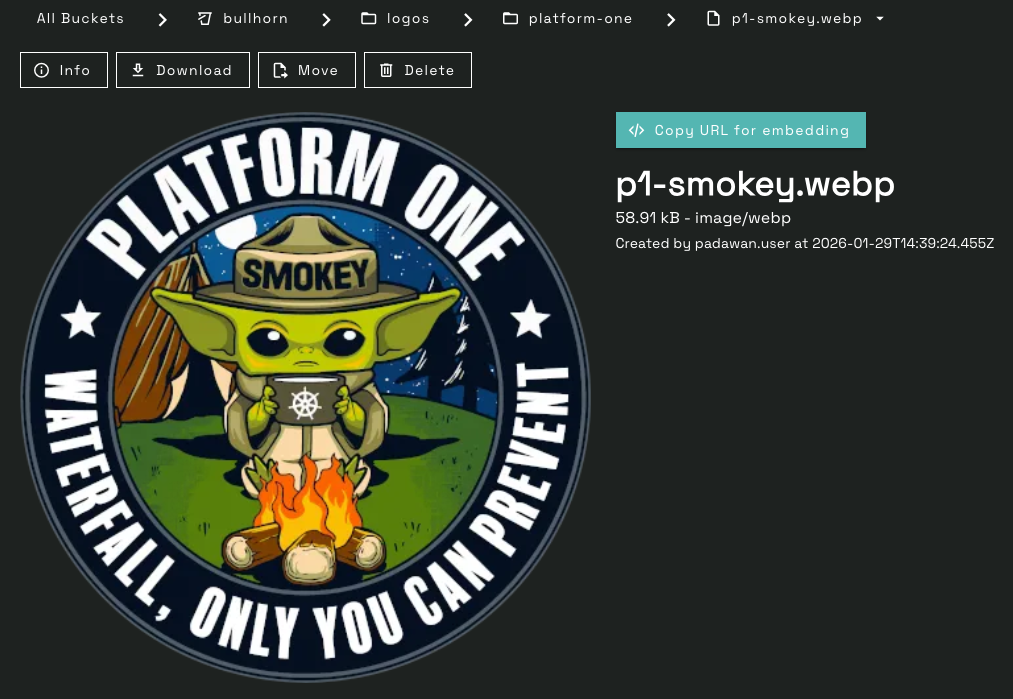
Reference uploaded files in your application easily by utilizing the `Copy URL for embedding" button to copy the URL reference.
<!-- example of embedding an image from the Content Portal in your site's html -->
<img src="https://websites.dso.mil/cdn/bullhorn/logos/platform-one/padawan.webp" alt="Padawan logo" />
Local Development
When developing websites and applications that reference assets stored in Padawan Content Portal, developers often utilize local development urls such as http://localhost to view their site and make quick changes.
If your site is referencing assets in the IL2 Public Content Portal, i.e. with embedded urls starting with https://websites.dso.mil/cdn/, then your assets will load in local development without any additional configuration. However, for all SSO Content Portal instances, a minor configuration change is necessary.
SSO Assets
Due to the way that Platform One Party Bus SSO works, requests must have the same origin domain (.dso.mil) to be able to be authenticated by the SSO gatecheck. In local development this means that accessing your site using localhost will result in errors when the browser tries to load assets that require SSO.
If you are seeing http responses for your assets like 302 or 302 Found it likely means that Authservice is redirecting your request to https://login.dso.mil. Even if you're already logged in to P1 SSO, the authorization cookie will not work on localhost.
The workaround is using a .dso.mil url in local development. An easy way to do this is to modify your /etc/hosts file to include a line such as:
# /etc/hosts
127.0.0.1 my-awesome-site.dev.dso.mil
This lets you open the url http://my-awesome-site.dev.dso.mil (or https://my-awesome-site.dev.dso.mil if you've configured SSL in local development) instead of localhost to load the SSO assets from the Content Portal. It also works with ports, so if you accessed your site at http://localhost:3000 you can also access http://my-awesome-site.dev.dso.mil:3000.
Url Patterns
You can use whatever url pattern you like, as long as it ends in .dso.mil. We recommend [your-site-name].dev.dso.mil to avoid accidentally aliasing real .dso.mil urls which may cause hard-to-debug issues for your future self.
Still seeing a 302 redirect for assets on http://my-awesome-site.dev.dso.mil? If you are accessing your site from a fresh incognito browser window or your P1 SSO session has expired you will also see 302 redirects even when using the /etc/hosts trick. Since P1 authentication is based on cookies it just means your current session cookie is missing or expired. Simply open a new tab and hit the url of the asset that is generating the 302 response. You'll be prompted to log in via P1 SSO, which will generate a valid session cookie for your browser. Now you can go back to http://my-awesome-site.dev.dso.mil and refresh the page; your SSO assets should now load without errors.